Stats
Creating a Stats Data Asset
- Open the content drawer, open the preferred directory, then right click on the empty space, or click "Add".
- Select Miscellaneous
- Select Data Asset
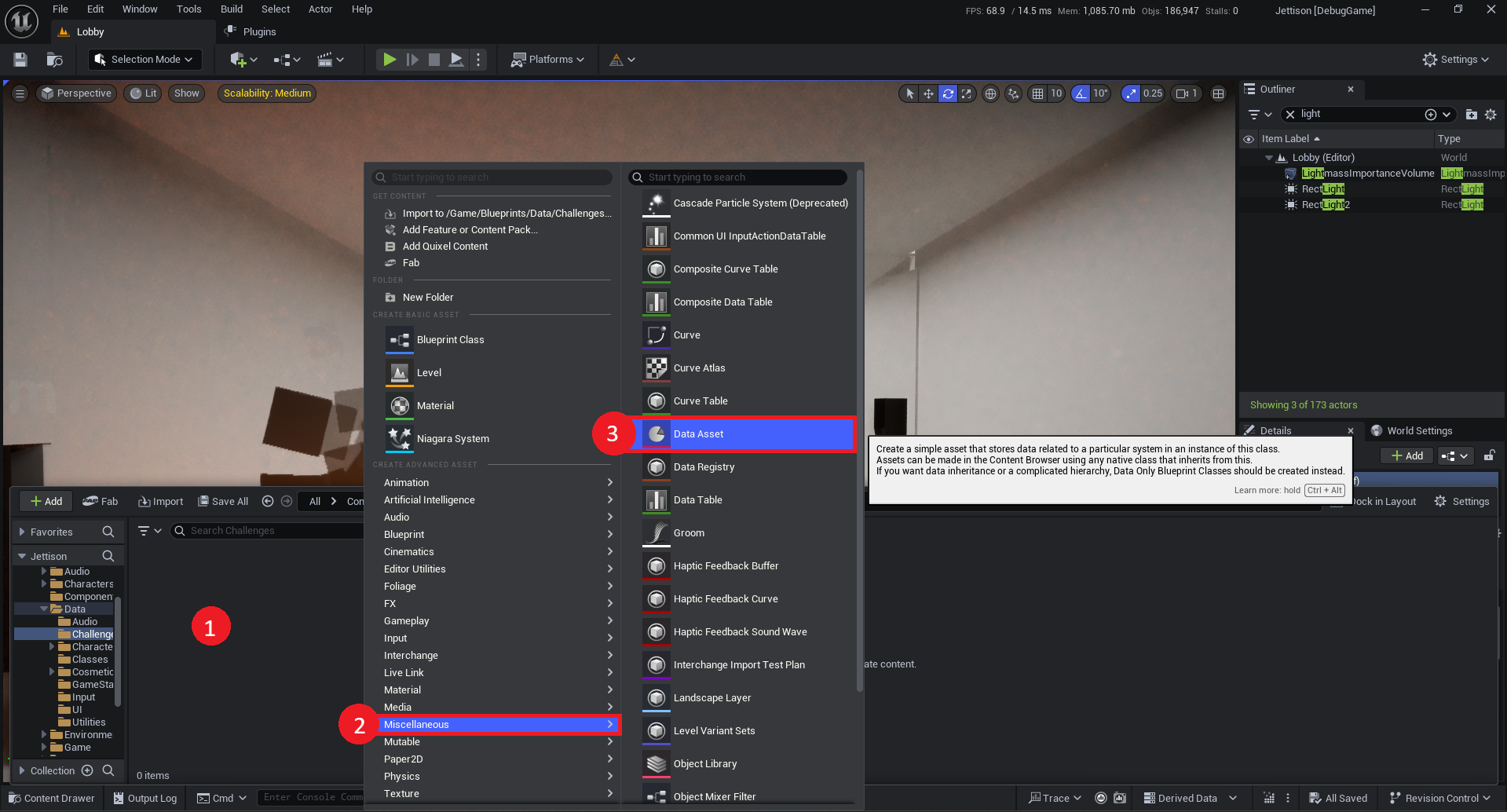
- Search For "Gateway Stat Data"
- Select Gateway Stat Data class.

Now, name the created file. (Typically something like DA_GatewayStatsData.)
Before adding any stats to the asset, We're going to add it to the global stats asset list. This will add the stats to the tracked list.
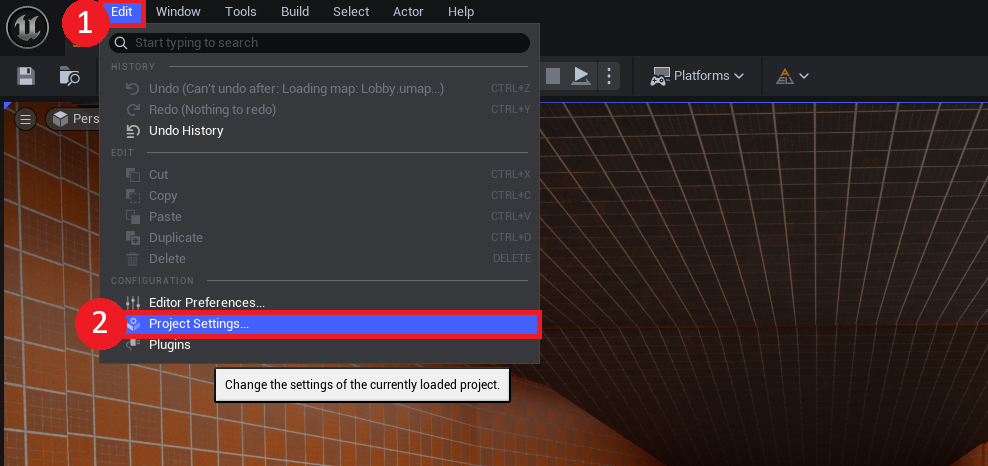
- Select "Edit" on the Toolbar
- Open "Project Settings"
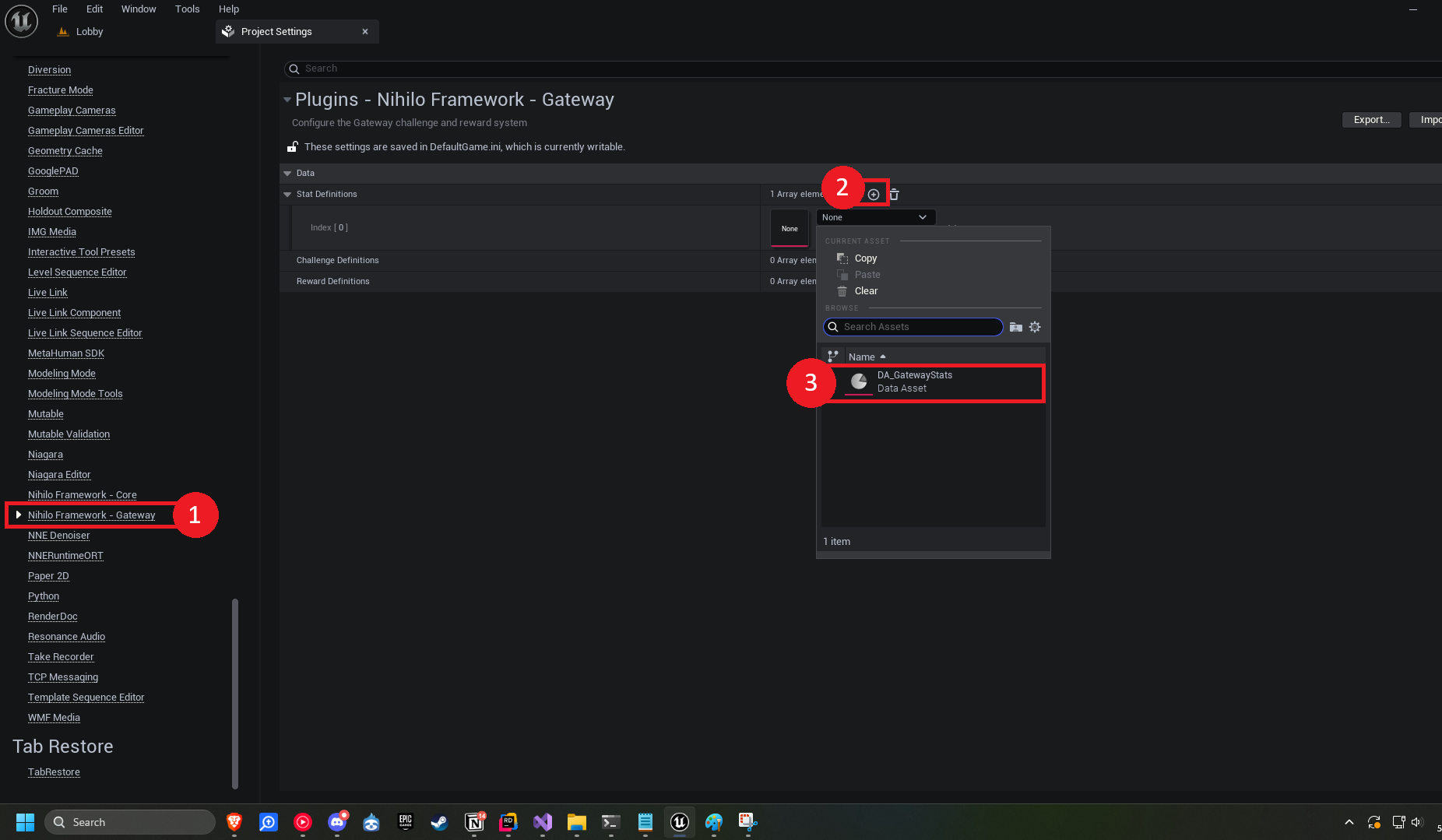
- Scroll down to Plugins -> "NihiloFramework - Gateway"
- Add an element to "Stat Definitions"
- Select your newly created Data Asset.
Adding Stat Definitions
A new stat definition will look something like this:
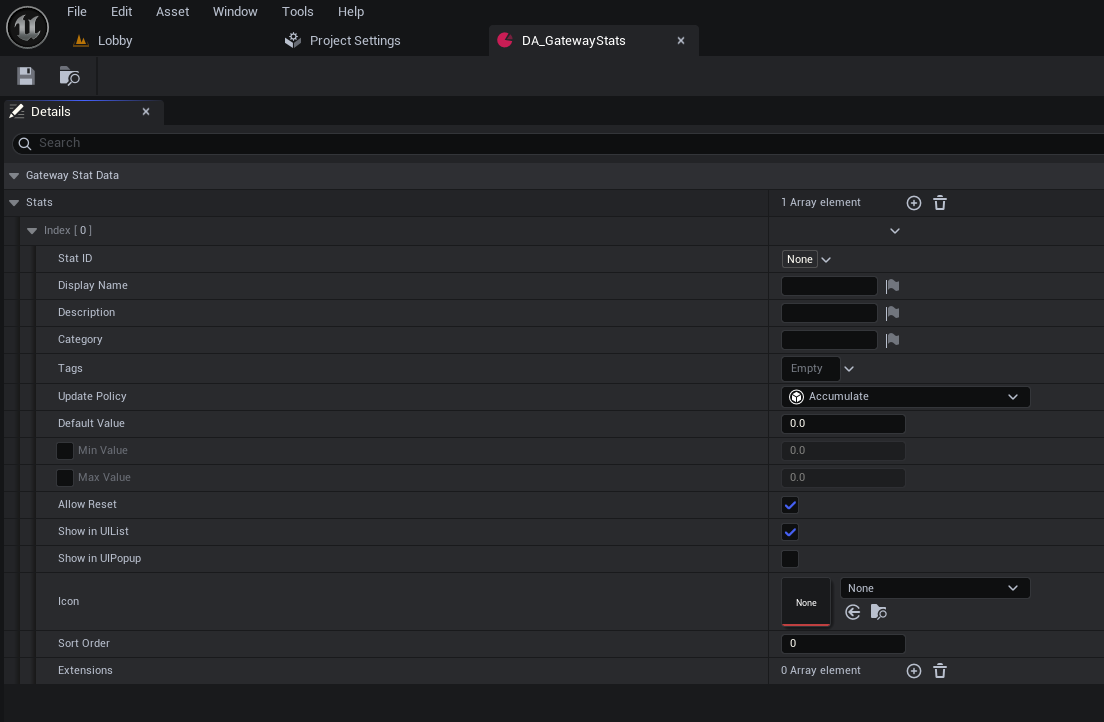
Let's walk through the fields of a stat definition
GatewayStatDefinition is the struct used to initially define a stat's properties and behavior at design time. It doesn't contain any actual serialized data, like stat value.
Stat Configuration
| Property | Description |
|---|---|
| Stat ID | This is what other systems use to locate and operate on the stat. It must be a unique, unused GameplayTag. Being a gameplay tag makes it far easier to locate and use in blueprint, and reduces bugs caused by typographical errors. The drawback is that it's slightly more difficult to operate on using console commands. |
| Display Name | This is the optional friendly name to be displayed in UI. |
| Description | This is the optional descriptionto be displayed in UI. |
| Category | This is the optional category be displayed in UI. Very useful for segregating the stats in the UI. |
| Tags | GameplayTags are the intended mechanism to filter operations. For example, one tag I commonly use is "Gateway.Stats.Persistence.Match". This allows me later to reset only relevant stats when a new match has started, and I can use the ResetAllStatsWithTagForPlayer operation, and reset all stats with that particular tag. |
| Update Policy |
A stats Update Policy is what tells the system which mathematical operation to use during updates. For example, a TotalDamageDealt
stat would have an "Accumulate" update policy. That way, each time dealing damage, you can call update stat, and give it the damage amount.
The stat will resolve the update by simply adding the damage amount to its total.
However, lets use a different example: HighestDamageNumber. This time just simply adding the damage to the total won't suffice.
Instead, use a Max update policy. This compares the existing value against the incoming update value, and keeps the greater. In this way, updates can remain very slim, and you
don't need complex logic inside code or blueprint related to the stats system.
I go into further detail in the Update Policies section. |
| Default Value | The default value applied when a stat in instantiated. Also, when reset, it returns to this value. |
| Min Value | The lowest value a stat can be. If an update attempts to reduce it below this value, and it is enabled, it will be clamped to it's min value. |
| Max Value | The highest value a stat can be. If an update attempts to raise it above this value, and it is enabled, it will be clamped to it's max value. |
| Allow Reset | During any operations attempting to reset this stat, it will first check whether the stat allows resets. |
| Show in UI List | Frequently, games will provide a list of available stats to the player. This provides an opportunity to exempt this stat from such lists. |
| Show in UI Popup | Frequently, games will show a popup when updating a stat. This provides an opportunity to exempt this stat from such popups. |
| Icon | An Icon or image to display in UI. |
| Sort Order | This provides a method to sort all stats manually. |
| Extensions | Extensions are a modular method to augment a stats behavior.
For example, let's say you'd like to tether a Gateway stat to Steam's own stat system for player achievements. You can create a blueprint stat extension,
hook onto the stat update event, and use whatever logic you need to update the steam stat.
Then that stat extension can be freely reused for any other stat that should be coupled to Steam stats.
More details can be found below. |
Updating Stats
Updating stats typically involves using the Gateway Library
Blueprint Function Library API.
In any blueprint, search for "Gateway" and the whole list of API functions will appear. The simplest for updating a stat is UpdateStatForPlayer:

In c++ it would look like this: cpp
UGatewayLibrary::UpdateStatForPlayer(WorldContextObject, PlayerState, MyCoolStatTag, 0);
There are many combinations of stat update functions provided in the library for convenience.
There are functions that receive an array of player states, and iterates over them with the given update.
Other functions such as UpdateStatForAllPlayers automatically iterates the update for each player found in the GameState PlayerArray.
Or, there are functions that receive an array of a struct called FGatewayStatUpdate, which contains a StatID and value properties, so that many stat updates can be performed in one call.
Another thing to mention is that there is a function called UpdateStatsWithTagForPlayer.
This could be a great option to easily update every stat grouped with a tag. You could group all damage stats for example, and update all of them at once.
Resetting Stats
Often there are cases where you might want to reset stats. One common example would be resetting all match stats at the beginning of a new match. This can be done easily with the ResetStatsWithTagForPlayer function.
Update Policies
Update Policies are the process stats use to update. This is useful to eliminate complex logic in gameplay code just to track a stat.
You can configure a stat's update policy in its Stat Definition Data Asset.
Here are the default options:
| Update Policy | Description |
|---|---|
| Accumulate | Probably the most common update policy. It simply adds the update value to the current stat value. Great for something like Total Match Damage. |
| Average | Takes the average of all values given. This would be good for a stat like Average Player Speed. |
| Boolean | A value of 1 = true, 0 = false. This is particularly good for tracking large feats. Like Defeated Final Boss. |
| Counter | Complete ignores the update value. Instead, it always increments the stat value by 1. Useful for something like Jump Count. |
| Max | Compares the incoming update value against the stat value. It keeps the greater. A great use case would be Highest Damage Number. |
| Min | Compares the incoming update value against the stat value. It keeps the lesser. This would be good for Fastest Completion Time. |
| SetValue | Completely overrides the last value. This is important for cases where you need to track the last value. Last High Damage Number. A potential advanced scenario would be to use this as an ID to select an item out of a set of data with an identifier field. Such as Favorite Weapon. However this would need extra care and probably an extension to use well. |
If these options aren't sufficient, you can always create your own custom update policy.
You can accomplish this by making a subclass of GatewayStatUpdatePolicy and overriding the virtual
ApplyUpdate function.
In Blueprint, that would look like this:
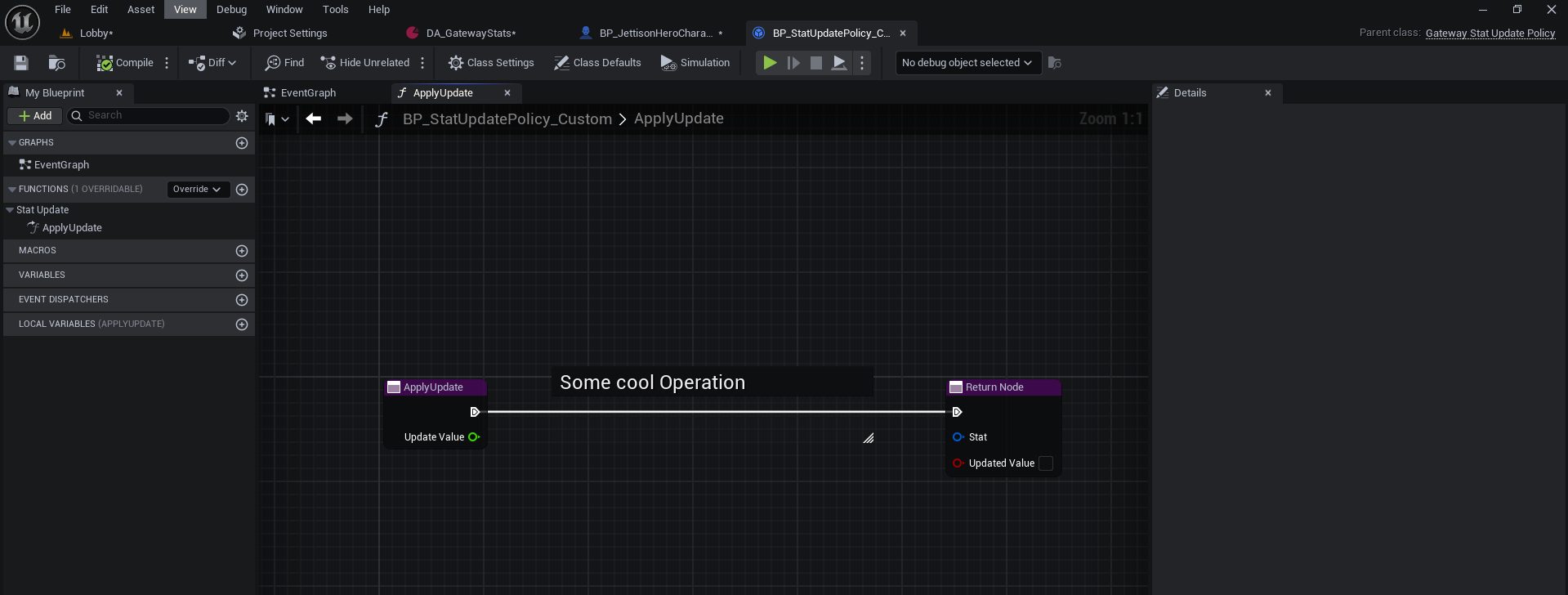
And in c++:
cpp
UpdatePolicy_Example.h
#pragma once

#include "CoreMinimal.h"
#include "Data/Stats/StatUpdatePolicy/GatewayStatUpdatePolicy.h"
#include "GatewayStatUpdatePolicy_Custom.generated.h"

/**
 *
 */
UCLASS(meta=(DisplayName="MyCustomUpdatePolicy", ToolTip="Reduces the current stat value by 2x UpdateValue."))
class NIHILOGATEWAY_API UGatewayStatUpdatePolicy_Custom : public UGatewayStatUpdatePolicy
{
	GENERATED_BODY()

	public:
	virtual void ApplyUpdate_Implementation(FGatewayStat& Stat, const float& UpdateValue, bool& bUpdatedValue) override;

};
cpp
UpdatePolicy_Example.cpp
#pragma once

#include "Data/Stats/StatUpdatePolicy/Policies/GatewayStatUpdatePolicy_Custom.h"
#include "CoreMinimal.h"
#include "Data/Stats/GatewayStat.h"

void UGatewayStatUpdatePolicy_Custom::ApplyUpdate_Implementation(FGatewayStat& Stat, const float& UpdateValue, bool& bUpdatedValue)
{
	Super::ApplyUpdate_Implementation(Stat, UpdateValue, bUpdatedValue);

	Stat.Value += (2* UpdateValue);
	bUpdatedValue = true;
}
Stat Extensions
Stat Extensions are a modular way to add behavior to a stat.
Creating a Stat Extension
To create a stat extension, either create a GatewayStatExtension blueprint or c++ class inheriting the UGatewayStatExtension class.
C++
cpp
StatExtension_Example.h
#pragma once

#include "CoreMinimal.h"
#include "Data/Stats/GatewayStatExtension.h"
#include "GatewayStatExtension_Custom.generated.h"

/**
 *
 */
UCLASS(BlueprintType, DisplayName="Custom Extension")
class JETTISON_API UGatewayStatExtension_Custom : public UGatewayStatExtension
{
	GENERATED_BODY()


public:
	virtual void HandleStatUpdated_Implementation(UGatewayComponent* GatewayComponent, const FGatewayStat& Stat) override;
	virtual void HandleStatReset_Implementation(UGatewayComponent* GatewayComponent, const FGatewayStat& Stat) override;

	UPROPERTY(EditAnywhere, BlueprintReadWrite)
	bool InlineVariable = false;
};
cpp
StatExtension_Example.cpp
#include "GatewayStatExtension_Custom.h"

void UGatewayStatExtension_Custom::HandleStatUpdated_Implementation(UGatewayComponent* GatewayComponent, const FGatewayStat& Stat)
{
	// Do Something
}

void UGatewayStatExtension_Custom::HandleStatReset_Implementation(UGatewayComponent* GatewayComponent, const FGatewayStat& Stat)
{
	// Do Something
}
Blueprint
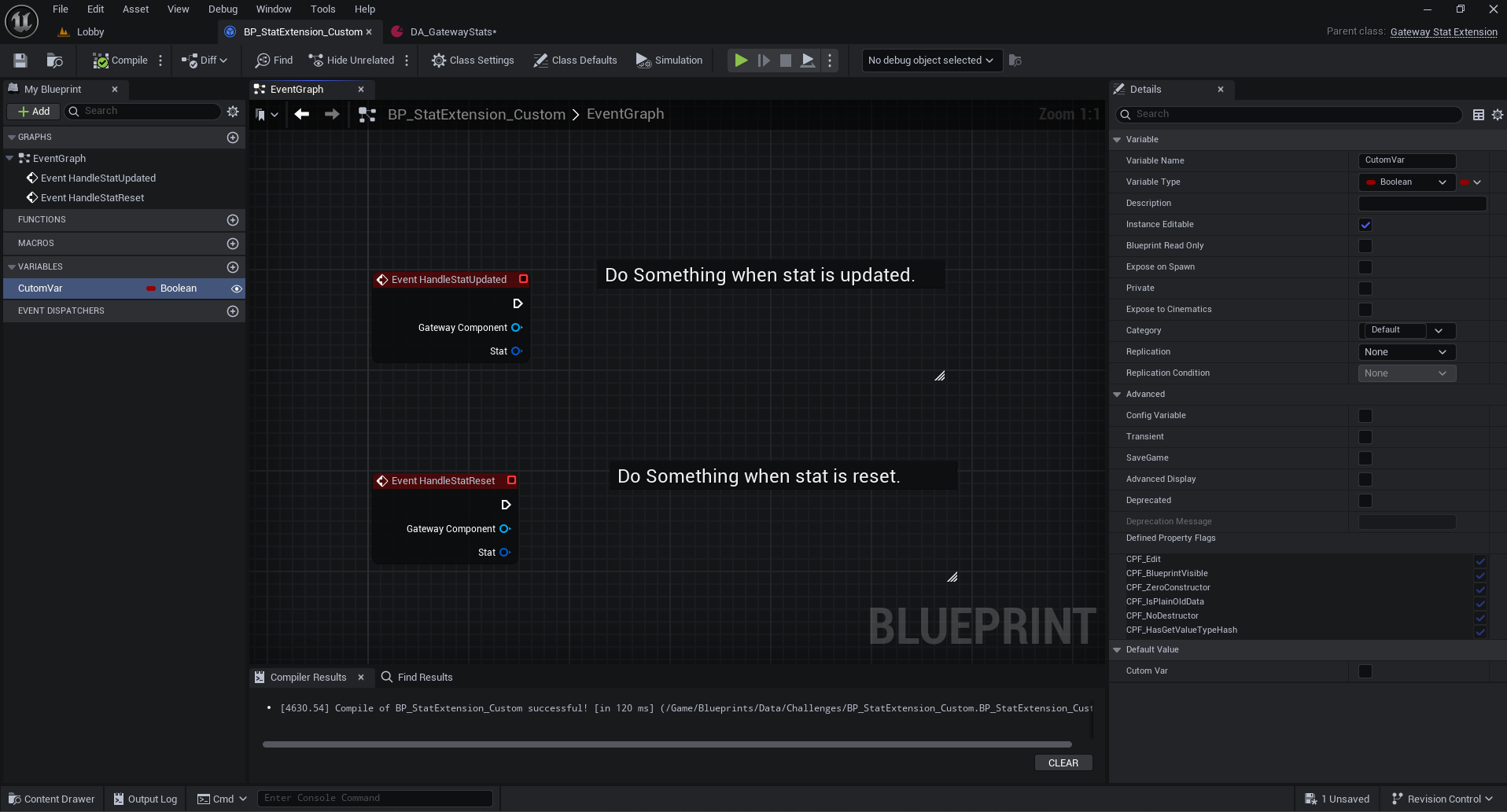
To make a variable visible inline when editing a stat definition, simply enable the "Instance Editable" box on the variable in blueprint, or add the EditAnywhere attribute onto the variable in c++.
To stylize the name cleanly like the defaults, just set the "Display Name" option on the class.
Uses
Stat Extensions are extremely powerful, when you need want behavior on stats.
For example, you could have a SteamStat extension on all the stats that you want to update a steam achievement stat.
Just add an instance editable variable for the name of the stat, and then update that steam stat the same way you would normally.
Another example could be a telemetry system you want to update.
You could involve GAS and apply a GameplayEffect.
I could see someone trying to update UI based on this, and that might be possible, but I haven't tested that,
and would probably hook onto events on the GatewayComponent instead.
Stat Struct
cpp
USTRUCT(BlueprintType)
struct NIHILOGATEWAY_API FGatewayStat : public FFastArraySerializerItem
{
	GENERATED_BODY()


	// Info
	UPROPERTY(EditAnywhere, BlueprintReadWrite, Category = "Info")
	FGameplayTag ID;

	UPROPERTY(Transient, EditAnywhere, BlueprintReadWrite, Category = "Info")
	FText DisplayName;

	UPROPERTY(Transient, EditAnywhere, BlueprintReadWrite, Category = "Info")
	FText Description;

	UPROPERTY(Transient, EditAnywhere, BlueprintReadWrite, Category = "Info")
	FText Category;

	UPROPERTY(Transient, EditAnywhere, BlueprintReadWrite, Category = "Info")
	FGameplayTagContainer Tags;


	// UI
	UPROPERTY(Transient, EditAnywhere, BlueprintReadWrite, Category = "UI")
	bool ShowInUIList;

	UPROPERTY(Transient, EditAnywhere, BlueprintReadWrite, Category = "UI")
	bool ShowInUIPopup;

	UPROPERTY(Transient, EditAnywhere, BlueprintReadWrite, Category = "UI")
	TSoftObjectPtr<UTexture2D> Icon;

	UPROPERTY(Transient, EditAnywhere, BlueprintReadWrite, Category = "UI")
	int32 SortOrder = 0;


	// Settings
	UPROPERTY(Transient, EditAnywhere, BlueprintReadWrite, Category = "Settings")
	TObjectPtr<UGatewayStatUpdatePolicy> UpdatePolicy;

	UPROPERTY(Transient, VisibleAnywhere, Category = "Settings")
	float DefaultValue = 0.0f;

	UPROPERTY(Transient, EditAnywhere, BlueprintReadWrite, Category = "Settings", meta = (InlineEditConditionToggle))
	bool bHasMinValue = false;

	UPROPERTY(Transient, EditAnywhere, BlueprintReadWrite, Category = "Settings", meta = (EditCondition = "bHasMinValue"))
	float MinValue = 0.0f;

	UPROPERTY(Transient, EditAnywhere, BlueprintReadWrite, Category = "Settings", meta = (InlineEditConditionToggle))
	bool bHasMaxValue = false;

	UPROPERTY(Transient, EditAnywhere, BlueprintReadWrite, Category = "Settings", meta = (EditCondition = "bHasMaxValue"))
	float MaxValue = 0.0f;

	UPROPERTY(Transient, EditAnywhere, BlueprintReadWrite, Category = "Settings")
	bool bAllowReset = true;


	// Events
	UPROPERTY(VisibleAnywhere, BlueprintReadOnly, Category = "Events")
	int32 EventCounter = 0;

	UPROPERTY(VisibleAnywhere, BlueprintReadOnly, Category = "Events")
	FName LastEvent;


	// Progress
	UPROPERTY(SaveGame, EditAnywhere, BlueprintReadOnly, Category = "Values")
	float Value = 0.0f;

	UPROPERTY(SaveGame, EditAnywhere, BlueprintReadOnly, Category = "Values")
	float TotalValue = 0.0f;

	UPROPERTY(SaveGame, EditAnywhere, BlueprintReadOnly, Category = "Values")
	float PreviousValue = 0.0f;

	UPROPERTY(SaveGame, EditAnywhere, BlueprintReadOnly, Category = "Values")
	int32 UpdateCount = 0;

	UPROPERTY(SaveGame, EditAnywhere, BlueprintReadOnly, Category = "Values")
	FDateTime LastUpdated;

	UPROPERTY(SaveGame, EditAnywhere, BlueprintReadOnly, Category = "Values")
	FDateTime CreatedTime;


	// Extension
	UPROPERTY(Transient, EditAnywhere, BlueprintReadWrite, Category = "Settings")
	TObjectPtr<UGatewayStatExtension> Extension;


	FGatewayStat();

	void ResetValues();
	bool Update(float Value);
	void SetValue(float Value);
	// void ApplyProgress(FGatewayStat* OtherStat) const;
	void AddEvent(FName EventName);


	bool operator==(const FGatewayStat& Other) const
	{
		return ID == Other.ID;
	}

};