Quick Start Guide
Step 1: Download Plugins
Find the Nihilo Gateway Plugin on Fab.

Download it, and it's dependency (Nihilo Core plugin).
In the Epic Games Launcher -> Unreal Engine -> Library, ensure that both plugins are installed to the engine your project uses.
Step 2: Enable Plugins in Editor
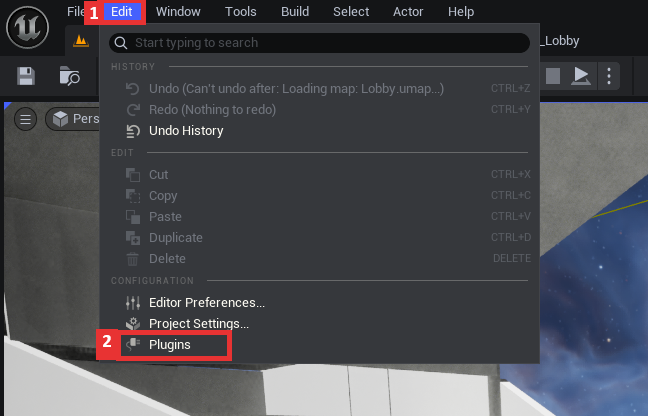
With your project editor open, navigate to Edit -> Plugins.
- In the search bar, enter "Nihilo". This should find both of the required plugins.
- Enable the Nihilo Core dependency plugin.
- Enable the Nihilo Gateway plugin.
- When ready, restart the editor.
Remember to save any important work before restarting the editor!
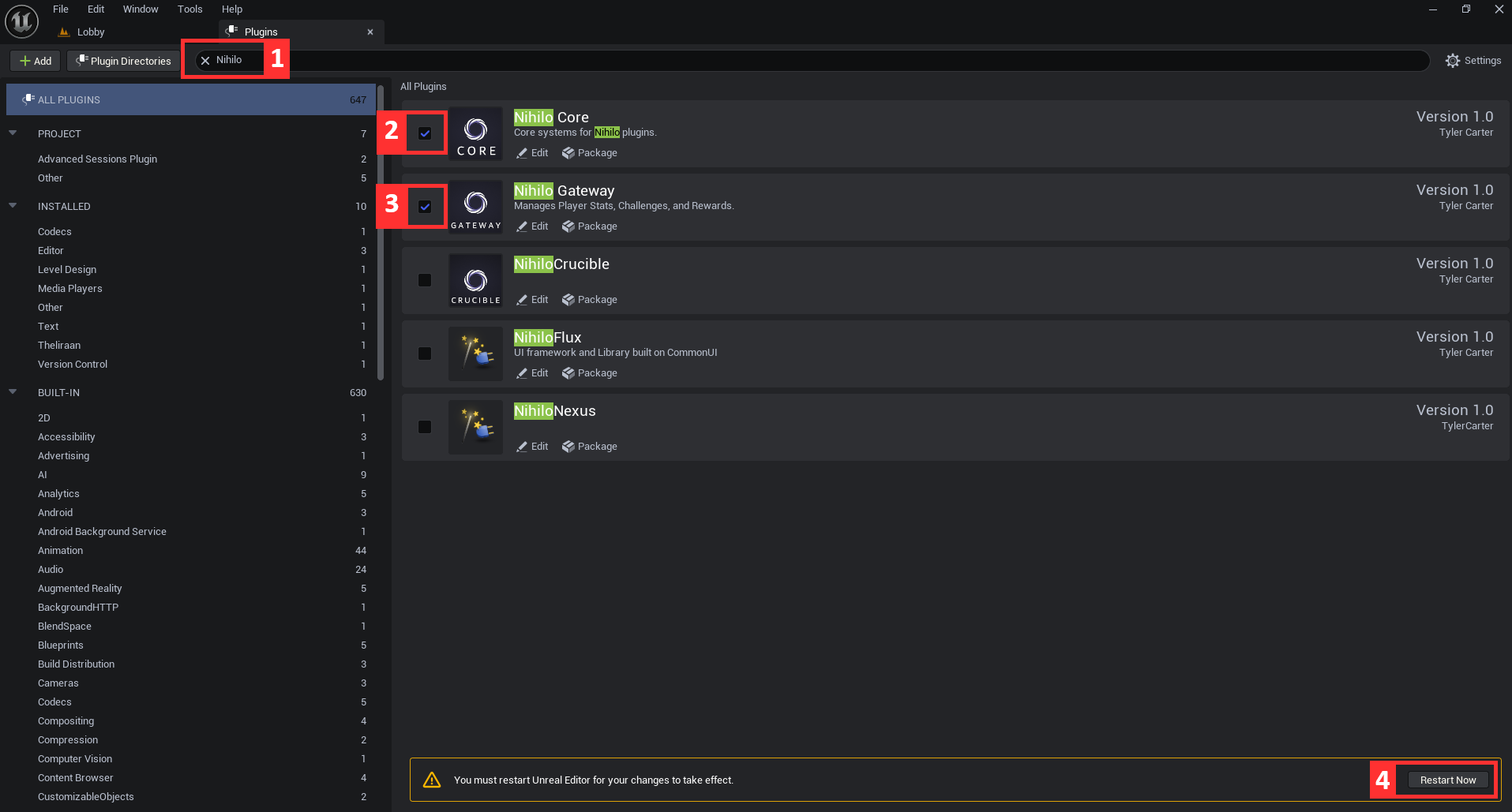
That's it! Your project is now equipped with the Gateway plugin.
Step 3: Create the DataAssets
- Open the content drawer, open the preferred directory, then right click on the empty space, or click "Add".
- Select Miscellaneous
- Select Data Asset
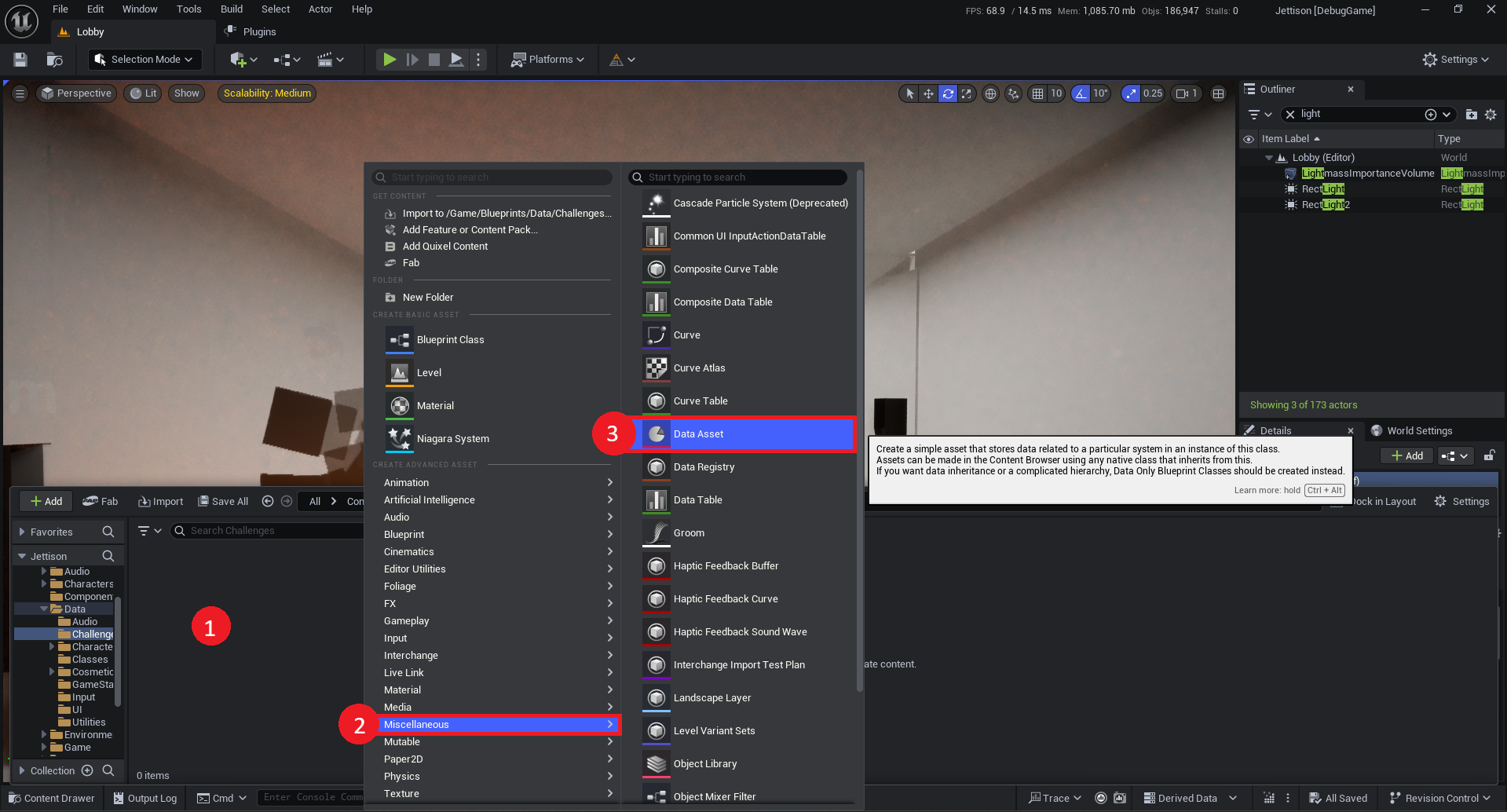
Search for "Gateway Data"
To get the most out of Gateway, you will want to create at least one of each:
- GatewayStatData
- GatewayChallengeData
- GatewayRewardData
You are free to create as many of each data asset class as you'd like. Just remember to add them to the project settings.

For help with adding data to these, check these resources:
Step 4: Add the DataAssets to the Project
Navigate to View->Project Settings -> Plugins -> NihiloFramework - Gateway. Add the DataAssets to their respective arrays.
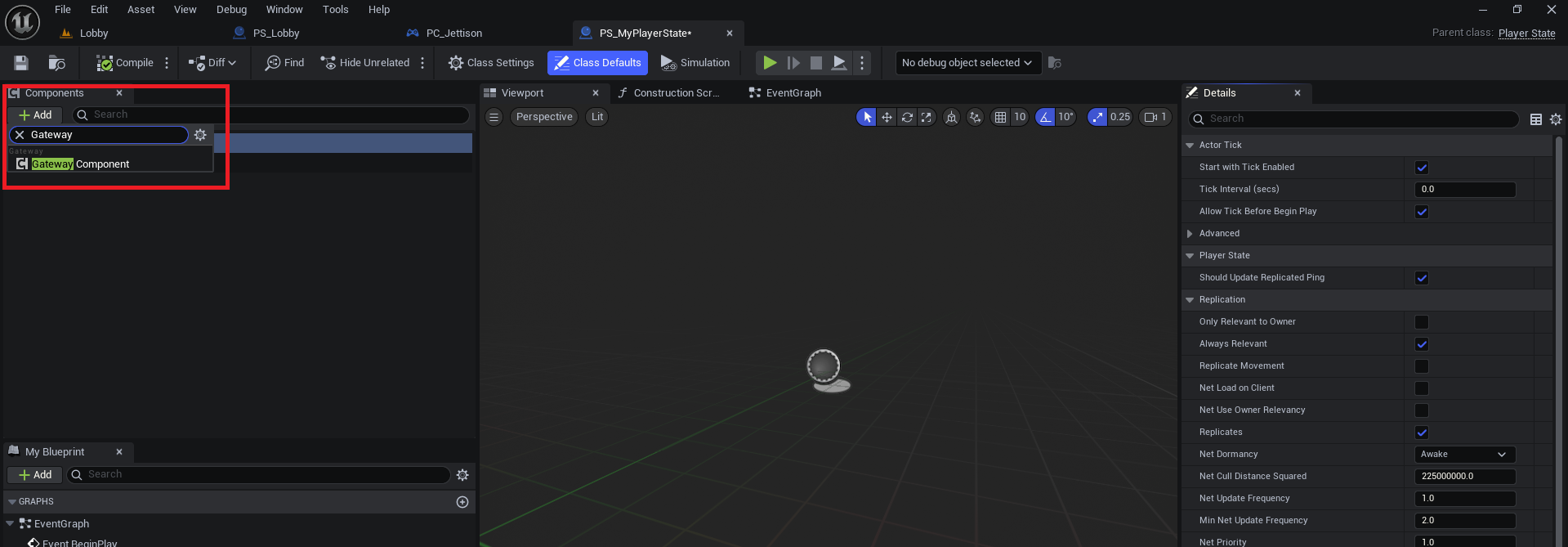
Step 5: Attach Gateway Component
Simply attach the Gateway Component to your PlayerState class.
The Gateway Component must be attached to a PlayerState class. PlayerController or Character will not work.
Step 6: Update Stats
Updating stats typically involves using the Gateway Library
Blueprint Function Library API.
In any blueprint, search for "Gateway" and the whole list of API functions will appear. The simplest for updating a stat is UpdateStatForPlayer:

Step 7: UI
If your project doesn't need UI widgets, but you'd like to monitor the stats while debugging, consider using the
debug overlay
This allows for a very quick and easy way to watch the values, without standing up a whole UI system.
However, if your project does require UI, consider consulting the UI Guide.