Adding UI
Overview
Gateway does not provide any built-in UI widgets. Instead, it exposes all player data through the
Gateway Library API, giving you full
control over how stats, challenges, and rewards are presented in your game.
The general pattern is straightforward: query the data you need from the Gateway Library, then
populate your own widgets with it. The examples below walk through a simple stats list to demonstrate the approach.
Stat, challenge, and reward definitions each include Show in UI List and
Show in UI Popup flags. Use these to control which entries surface in your UI
without needing conditional logic in your widgets.
Stats List
A stats list is built from two widgets working together: a container widget that fetches and populates the list,
and an item widget that handles the display of a single stat.
Container Widget
The container widget is responsible for fetching all stats for the local player and creating
an item widget for each one. On Construct:
- Get the owning player's PlayerState via GetOwningPlayer.
- Pass it to GetAllStatsForPlayer to retrieve the full stat array.
- Loop over the array. For each stat, create a WBP_StatListItem widget, passing in the stat and owning player.
- Add each created widget as a child of the VerticalBox_StatsList vertical box.
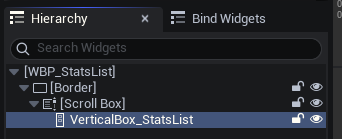
Item Widget
The item widget receives a single FGatewayStat and populates
its text blocks on Construct:
- Break the FGatewayStat struct to access its fields.
- Set DisplayNameBox to the stat's Display Name.
- Set DescBox to the stat's Description.
- Convert Value to text and set it on ValueBox.

Example

Challenge List
A simple challenges list is built from three widgets this time: a container widget that fetches and populates the list,
an item widget that handles the display of a single challenge, and shows another list of it's conditions.
Container Widget
The container widget is responsible for fetching all challenges for the local player and creating
an item widget for each one. On Construct:
- Get the owning player's PlayerState via GetOwningPlayer.
- Pass it to GetAllChallengesForPlayer to retrieve the full challenge array.
- Loop over the array. For each challenge, create a WBP_ChallengeListItem widget, passing in the challenge and owning player.
- Add each created widget as a child of the VerticalBox_ChallengeList vertical box.
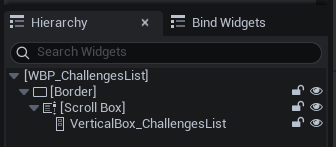
Item Widget
The item widget receives a single FGatewayChallenge and populates
its text blocks on Construct:
- Break the FGatewayChallenge struct to access its fields.
- Set DisplayNameBox to the challenge's Display Name.
- Set DescBox to the challenge's Description.
- Create a Condition Widget for each condition the challenge has and add it to a vertical box.
Condition Widget
The item widget receives a FGatewayChallengeCondition and populates
its text blocks on Construct:
- Use GetStatForPlayer to get the stat from the Stat Id tag.
- From that you can get the name or description and add it to the row.
- For coloring or whatever you need, you can use CheckConditionSatisfiedForPlayer and simply feed it the condition.
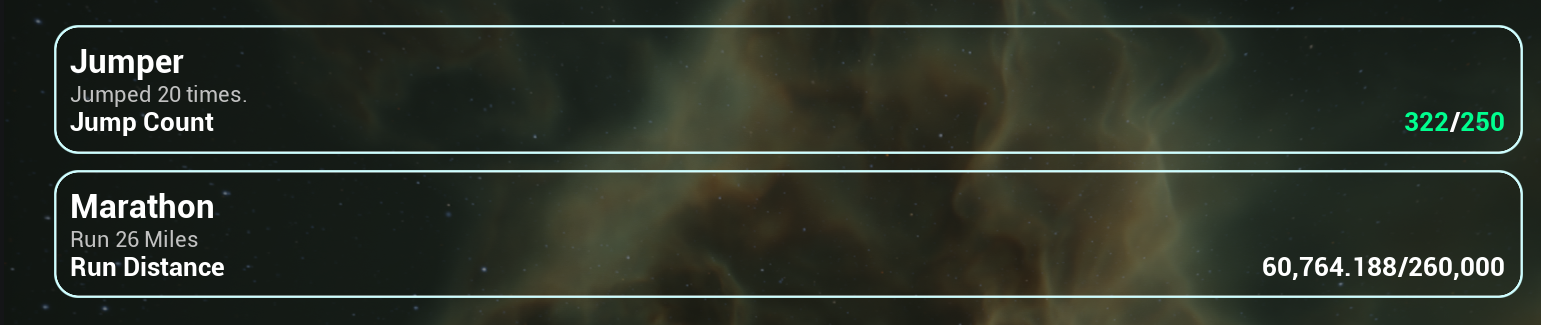
Example
Pop-ups
The recommended approach for popups is to subscribe to Gateway events directly from your HUD widget,
then spawn and display a popup widget whenever the event fires. Since you're already in a widget context,
you have easy access to the owning player controller, and from there getting the Player State is trivial.
The HUD subscribes to OnChallengeCompleted on the
GatewayComponent. When the event fires, it checks the challenge's
Show in UI Popup flag before proceeding — if it's false, the popup is skipped.
If true, it creates a WBP_ChallengePopup, adds it to the
ChallengePopupContainer overlay, waits for a delay, then removes it.
Popup Widget
The popup widget receives a single FGatewayChallenge as a
variable and populates its text blocks on Construct:
- Read the Challenge variable and break the FGatewayChallenge struct to access its fields.
- Set DisplayNameBox to the challenge's Display Name.
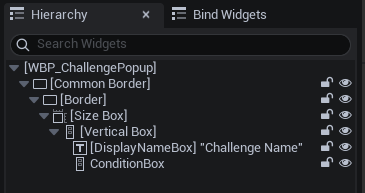
- Loop over the challenge's Conditions array. For each condition, create a WBP_ChallengeCondition widget, passing in the condition and owning player.
- Add each created condition widget as a child of the ConditionBox vertical box.
The Challenge variable on the popup widget needs to be set before or
immediately after creation so it's available when Construct fires. Expose
it as a public variable on the widget and set it via the reference returned by
Create Widget in the HUD.
Example
